




If you encounter an error while trying to pair a new accessory with your Ooma Telo Base Station, it may be due to a conflict between an existing accessory and the one you are trying to pair. Telo Base Stations that have already been synced with an Ooma HD1 Handset (the first generation model of the Ooma Handset line) cannot pair with newer Ooma devices.
The Ooma HD1 Handset is not compatible with the Ooma HD3 Handset, Ooma HD2 Handset, Ooma Linx devices, the Ooma Safety Phone, or Ooma Smart Security sensors. If you would like to update your Telo Base Station to pair with newer devices, please note that your Ooma HD1 Handset will no longer work.
The instructions below will guide you through changing the registration mode for your Ooma Telo Base Station:
- Use an Ethernet cable to connect your computer’s Internet port to the HOME NETWORK port on the Telo Base Station (note that the computer you connect will not be able to access the Internet)
- Give your computer a moment to receive an IP address from your Telo Base Station
- Open a web browser on your computer and navigate to either http://setup.ooma.com or 172.27.35.1
- Click
 on the left-hand navigation menu
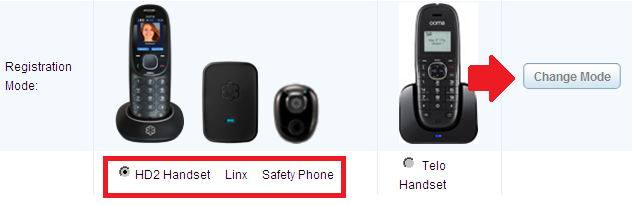
 - Choose the option for HD3 Handset, HD2 Handset, Linx, and Safety phone, and then click Change Mode, as shown in the image below:
- Return your Telo Base Station to its previous configuration within your network and allow it to boot up
Once you have completed these steps, you can follow the instructions that came with your device to pair it with your Ooma Telo Base Station.