




Last Updated: July 21, 2025
When you activate your Ooma Office account, your first Virtual Receptionist will automatically be set up with a text-to-speech greeting and will default to using the Virtual Receptionist menu option. You can change how the Virtual Receptionist handles incoming calls or update your greeting at any time by following these instructions:
- Log in to office.ooma.com as an administrator and navigate to the Settings page.
- Locate the Virtual Receptionist whose greeting you wish to update and click the corresponding line.
- Choose whether you will update the Business Hours Menu greeting or the After Hours/Holiday Menu greeting by clicking the appropriate tab.
- Choose where you would like to send calls:
- Menu plays the greeting that you enter and then sends callers to the Virtual Receptionist’s menu.
- Extension sends calls directly to an extension. You can play an optional greeting prior to transferring the call.
- Voicemail sends calls directly to an extension’s voicemail. You can play an optional greeting prior to transferring the call.
- If you choose to play a greeting through the Virtual Receptionist, there are two possible ways to set it up:
- Text-to-speech allows you to choose a voice and diction (or accent) that the system will use to read a text prompt of up to 150 words aloud.
- An audio file that you have recorded plays when the phone connects. The audio file can be up to 5mb and size and must be in either .wav or a .mp3 format. You can choose the most appropriate option and update your greeting by clicking on the content of the “Text-to-speech” box. This will open the Initial Greeting window: \
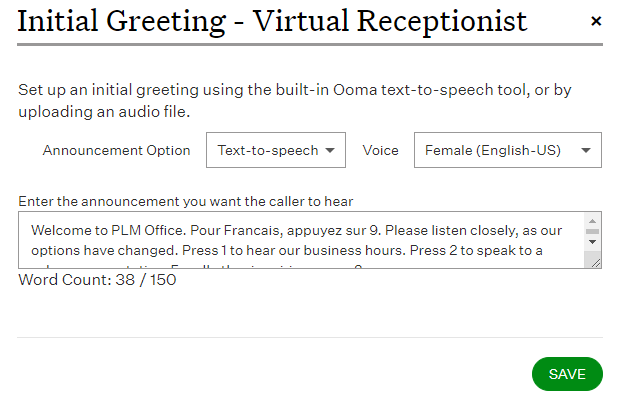
- Choose “Text-to-speech” or “Audio file” from the drop-down menu and update your greeting.
- If you have selected to upload an audio file, select the “Disclaimer” check box and click “Change File” on the screen that is displayed. Navigate to the location on your computer where the file is stored, select it, and then click “Open.” to upload the file to the system. Otherwise, choose the vocal characteristic you prefer for the Text-to-speech speaker.
- Save your changes.