




Last Updated: June 29, 2026
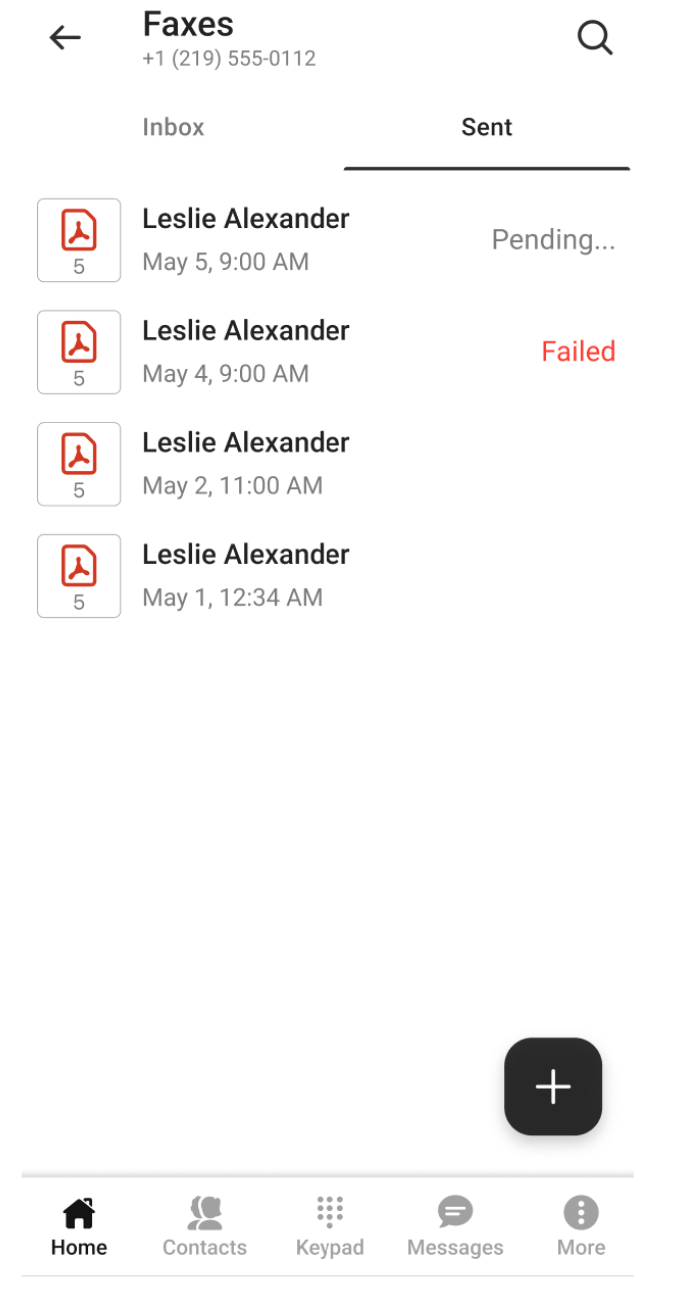
The Faxes module lists previous faxes and acts as a fax machine that lets you send and receive faxes. You’ll see two tabs: Inbox for received faxes and Sent for outgoing faxes.
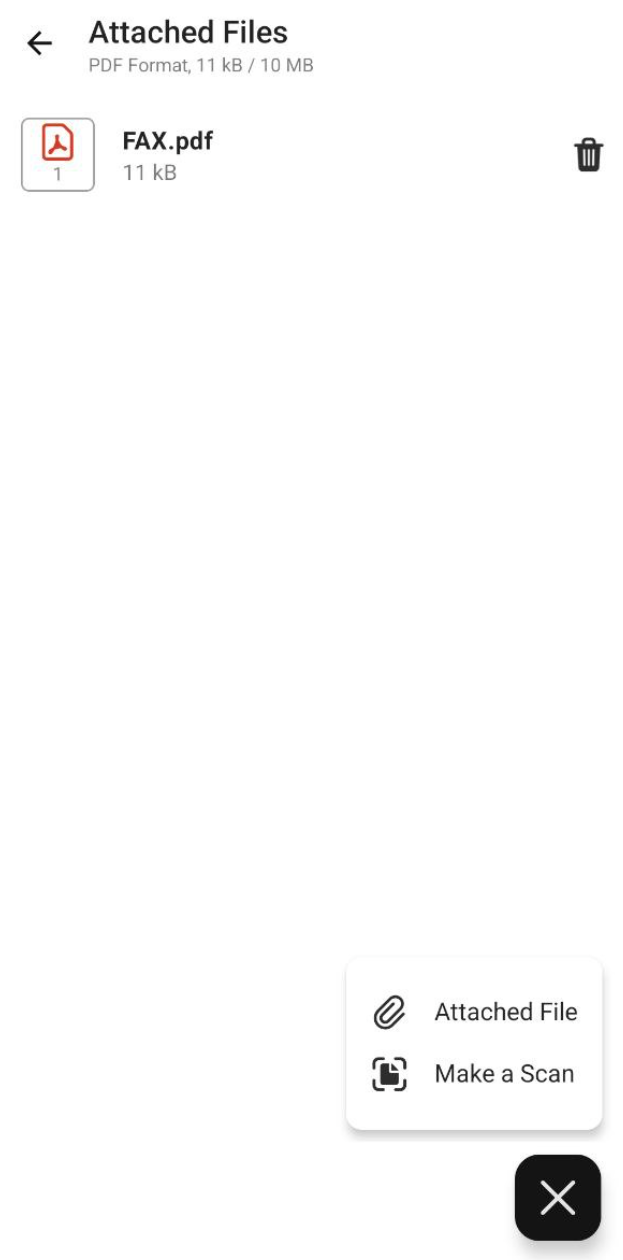
Tapping  opens a menu with two options for sending a fax:
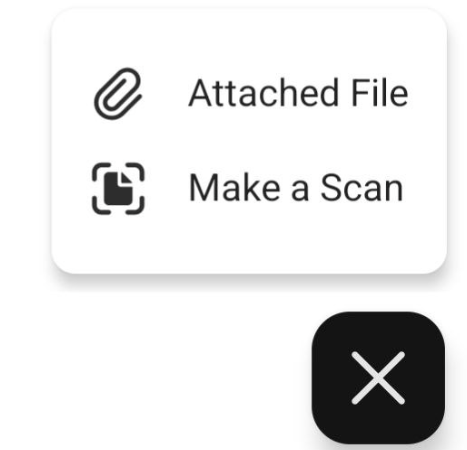
- Attached File opens your phone’s file system, allowing you to choose one or more files to send as a fax.
- Make a Scan activates your phone’s camera, so you can take a photo of the document you want to fax.
Once you select a fax file, the Send Fax form appears:
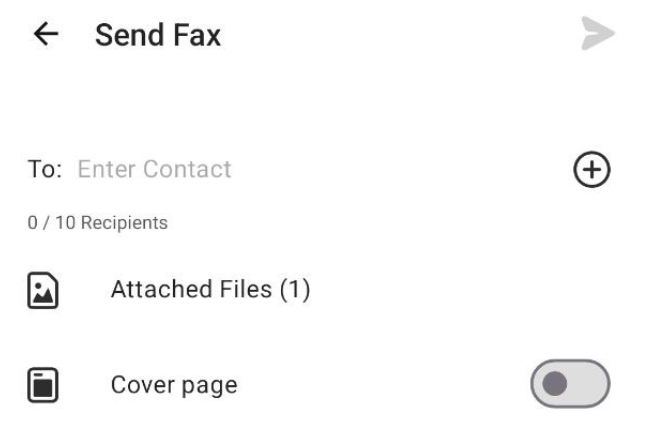
- Use the To: field to add up to 10 recipients. You can add them manually in the Enter Contact field, or you can tap
 to select contacts from your lists.
 - Tap the Attached Files option to preview the files you’ll fax. Use the menu to add additional files.
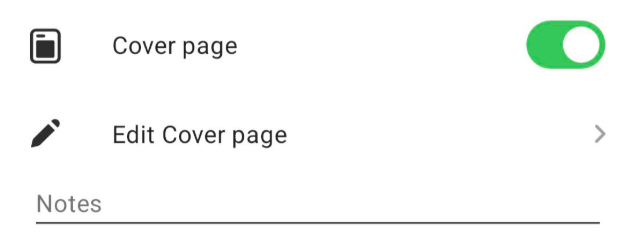
- Toggle the Cover Page option on to reveal additional fields:
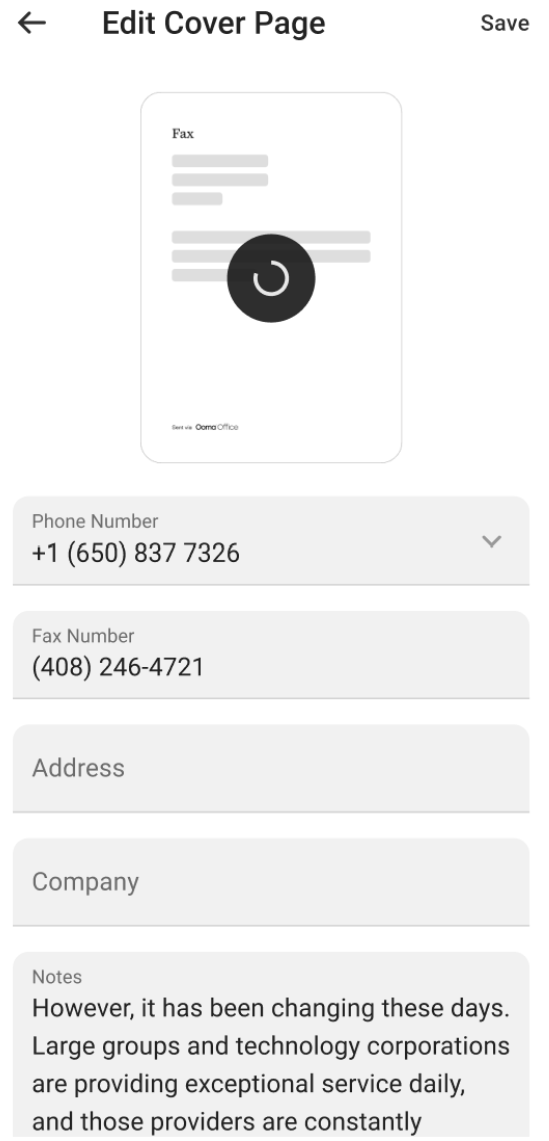
- Edit Cover Page opens a form where you can customize the cover page. The cover page will be attached to the fax as a separate file.
- Use the optional Notes field to add notes to the fax message.
- Edit Cover Page opens a form where you can customize the cover page. The cover page will be attached to the fax as a separate file.
- Use
 to send the message.
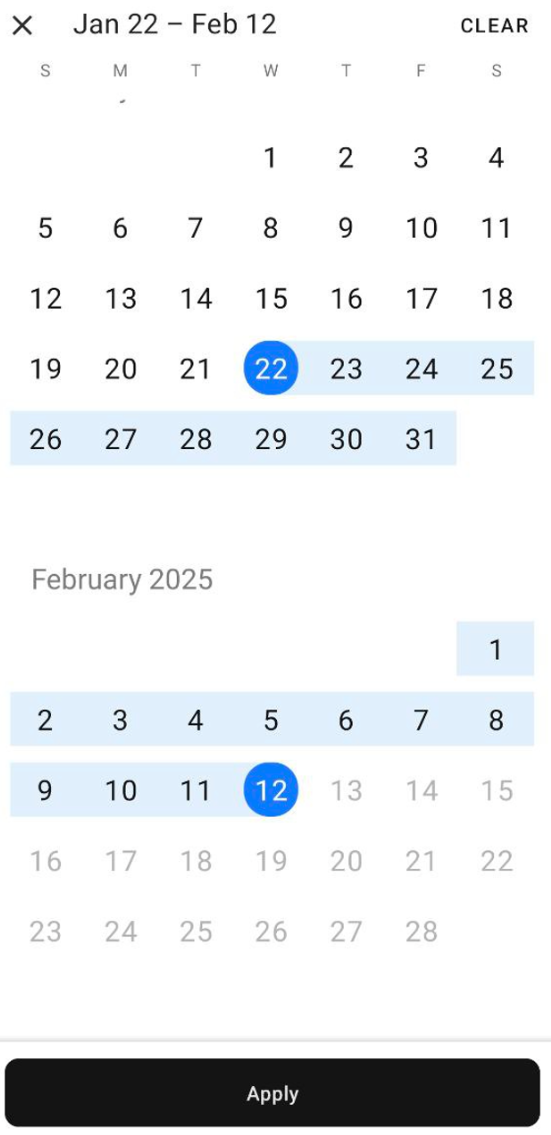
You can filter the view in the Faxes module by date by tapping  in the main menu. Select a start date and end date to show faxes from that time period.