




Last Updated: March 4, 2026
Once you’ve logged in, you’ll start at the Home screen.
The Home Screen consists of three sections:
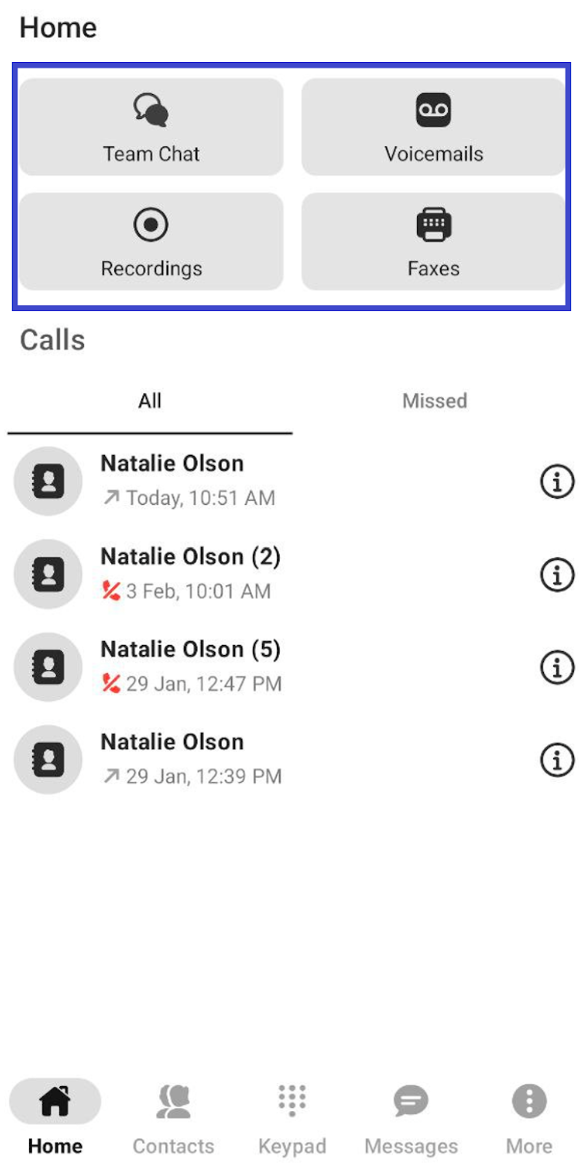
- At the top of the screen, you’ll see some of the modules that have been enabled for your Ooma Office account.
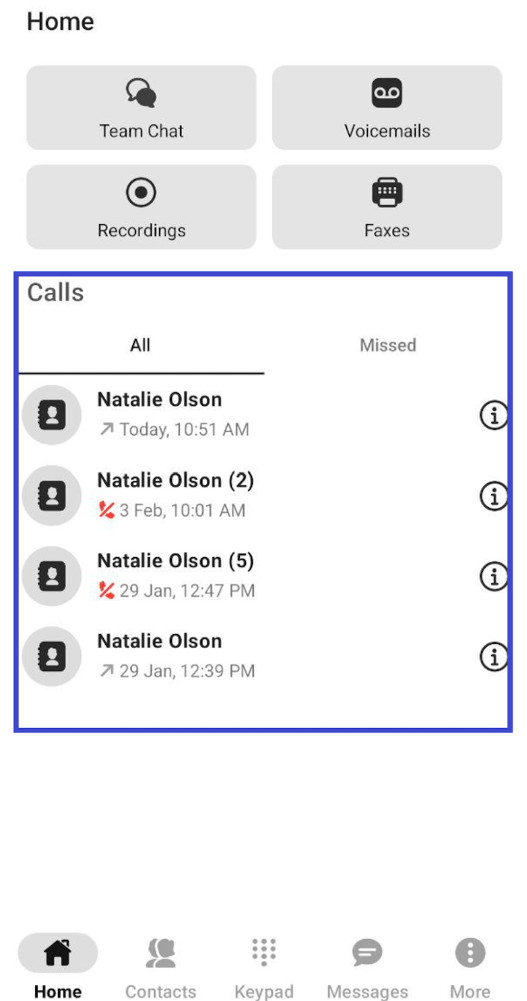
- The Calls list displays your recent received, made, and missed calls.
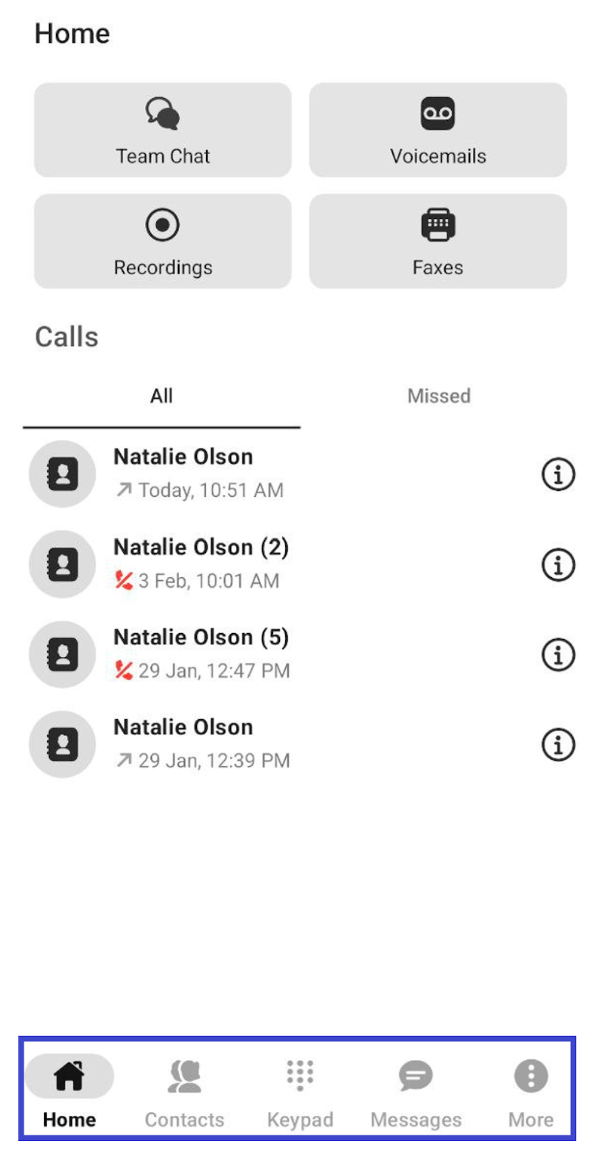
- The bottom navigation menu displays shortcuts for five of the app’s main features and key modules.
You can make a call right from the Home screen by tapping a number from the Calls menu.
For additional options, tap  to open a caller’s contact card.
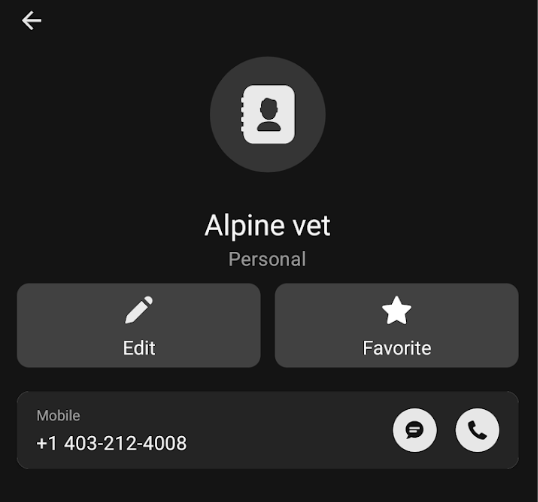
The contact card lets you do the following:
- View recent call details
- View the caller’s information
- Create a contact (for new contacts)
- Edit the contact
- Add the contact to your favorites
- Tap
 to call the contact
 - Tap
 to text the contact
 - Tap
 to send the contact an e-fax
Note that certain features may only be available if the module has been enabled by your account administrator.