


 Introducing
  ,
, 



Get the App
To activate your Telo Base Station, locate the seven-digit activation code printed on the bottom of the device:
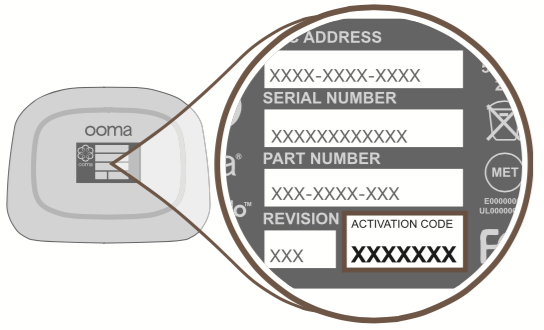
Navigate to: http://www.ooma.com/activate
Type in the activation code to get started. The activation wizard will guide you through:
- Selecting a phone number
- Registering your 911 address
- Adding billing information
- Creating your My Ooma account
You’ll receive an email confirmation once your device is activated.
Connect LTE Adapter to Base Station
Make sure your Base Station is unplugged. Use the provided USB cable to connect the LTE Adapter to the USB port on the back of the Base Station. If the provided cable is not long enough, you can use any USB cable up to 15’ long. You can learn more about where to place the adapter here.
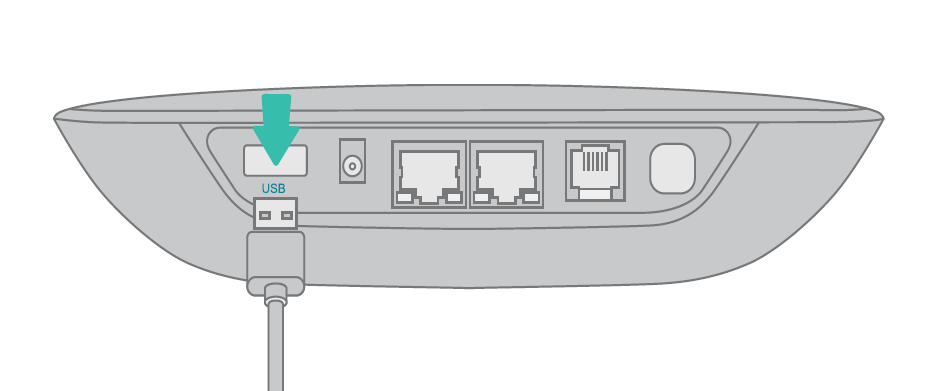
OPTIONAL: Plug in Ethernet Cable
If you will be using the Ooma Telo 4G adapter as a backup Internet connection, use the included Ethernet cable to connect your Base Station to your Home Internet. Insert one end of the Ethernet cable into the INTERNET port on the back of the Base Station. Connect the other end of the cable to an open port on your router.
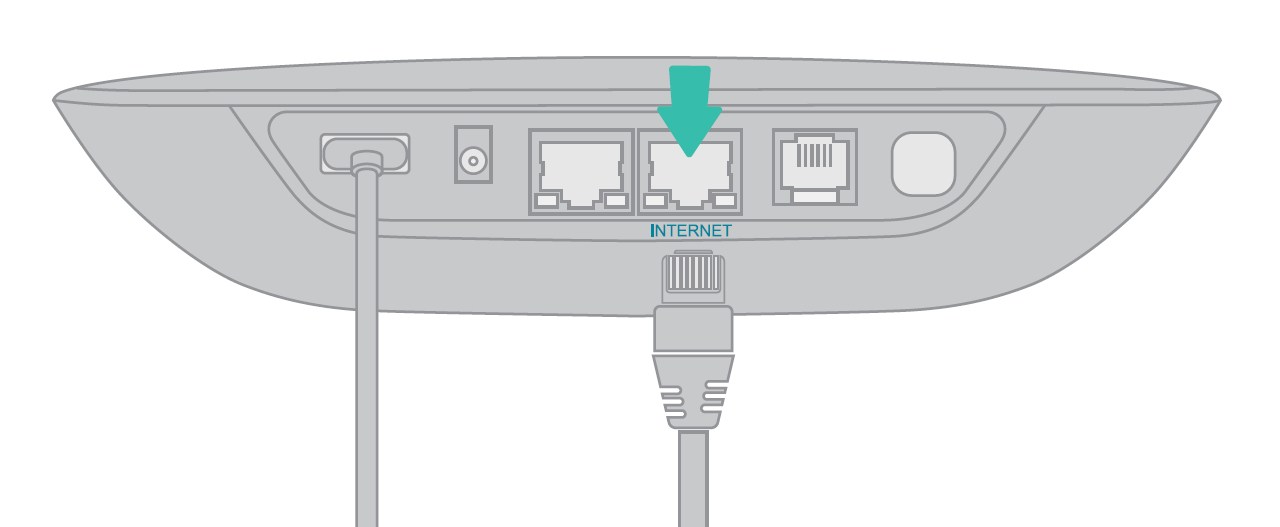
Connect Battery Backup
If your bundle includes Ooma Battery Backup, use the included USB power cable to the Base Station. Then use the AC adapter to connect the Battery Backup to a wall outlet, as shown below. Turn the Battery Backup’s power switch to ON.
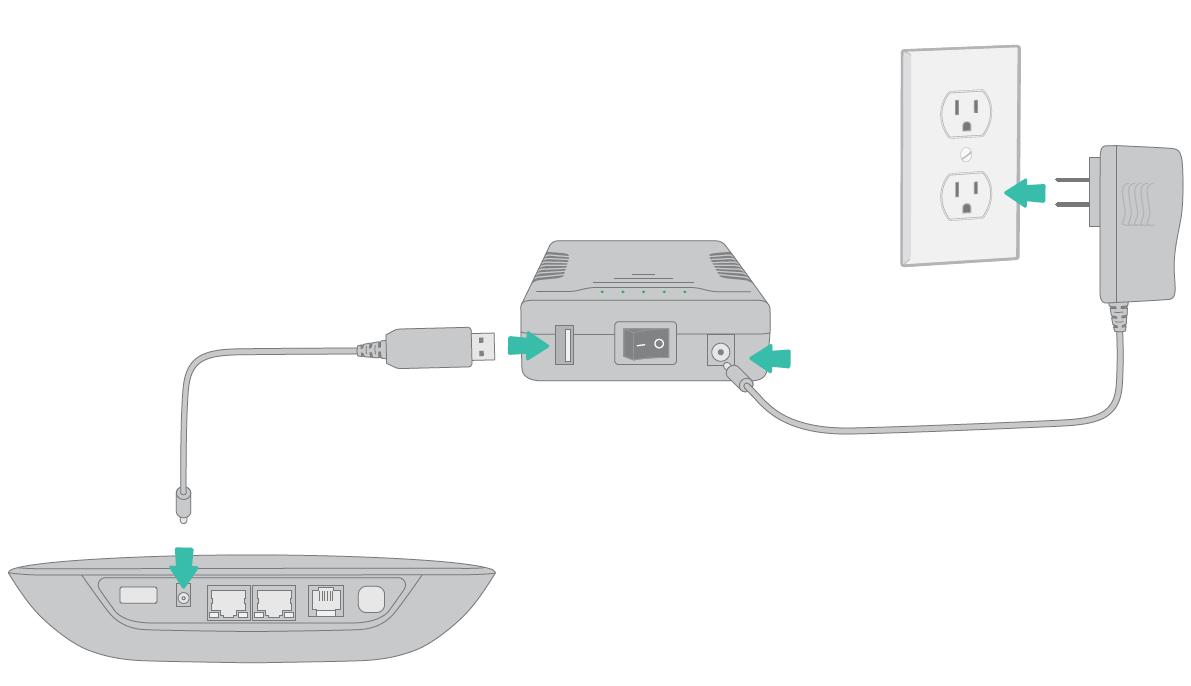
With this configuration, the Battery Backup will charge from the wall outlet while also powering the Base Station. If your power goes out, the Battery Backup will continue to power the Base Station.
Power on
Plug the included AC adapter into the POWER port. The Ooma logo will blink red for a few minutes. When it turns blue, the Base Station is ready.
If your Base Station needs a software upgrade, the Ooma logo will blink purple while it is downloading the newest version. This may take 5-10 minutes. Do not unplug the Base Station while it is upgrading. It will automatically reboot after the upgrade is done.
Connect Phone
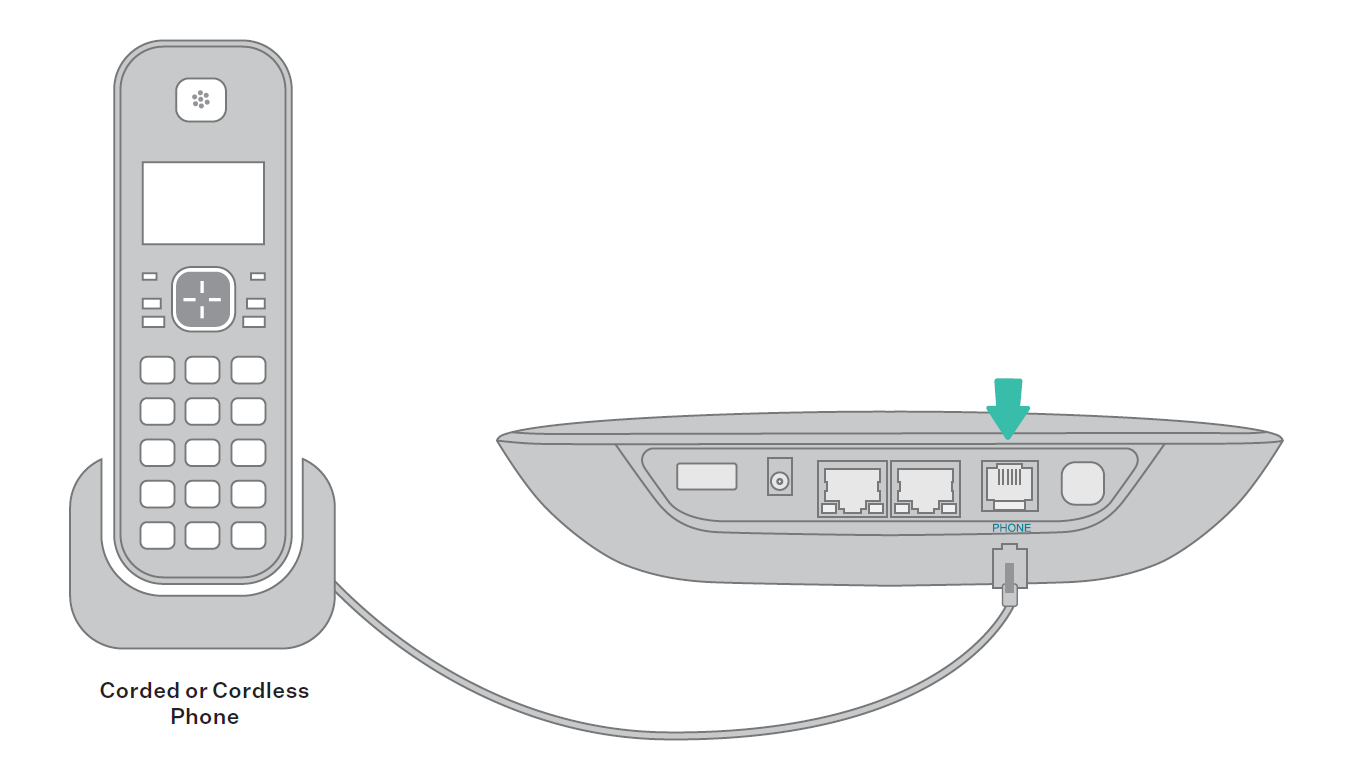
Make sure your Base Station is plugged in and that it has powered on and downloaded any applicable updates. Then, using an existing corded or cordless phone, plug the other end of the cord into the PHONE port.
FAQs
If you have questions while you are activating your account, these FAQs may be of help to you: