





Last Updated: March 4, 2026
The Contacts module is the app’s phone book:
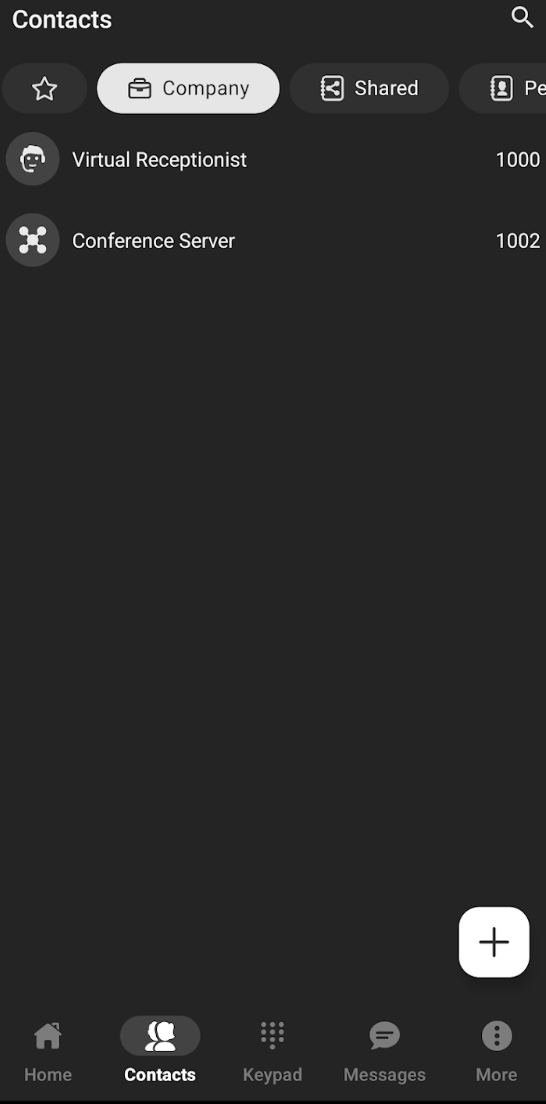
By default, you’ll have a few different contact lists to choose from. Tap any contact list to open it:

- Favorites: Highlights important or frequently-accessed contacts for quick access.
- Company: Lists your organization’s internal contacts.
- Shared: A contact list maintained by multiple users, typically for team or department use.
- Personal: The personal contacts saved directly on your device.
You can tap the  icon at any time to search for a specific contact.
Tap on a contact from any contact list to open their personal card. Here, you can view the contact’s details, edit their information, or mark them as a favorite. Based on your enabled modules, you may also be able to use the badges beside a phone number to initiate a call, send an SMS, or fax a message.
Long press a contact and use the  icon to remove them from any contact list that you maintain.
Use the  icon in the lower-right to open the Add menu:
- Add Personal Contact lets you create a new contact to save to your personal device.
- Add to Favorites lets you select one or more contacts from any contact list to add to your Favorites contact list.