





If your business deals with booking slots, appointments, reservations, or similar, then the Online Bookings feature is just what you need. Enabling this feature lets users do the following:
- Share available calendar time slots with others to help with meeting scheduling
- Send automated scheduling reminders and confirmation notifications
- Automatic time slot updates from integrated calendars
You can open the Online Bookings page by visiting the Meetings module and then selecting Online Bookings.
To use Online Bookings, a user must have an integrated Microsoft or Google calendar with read/write access enabled. When the calendar is connected, the user can create a booking page with preset details for upcoming meetings such as a title, duration, time horizon, and more.
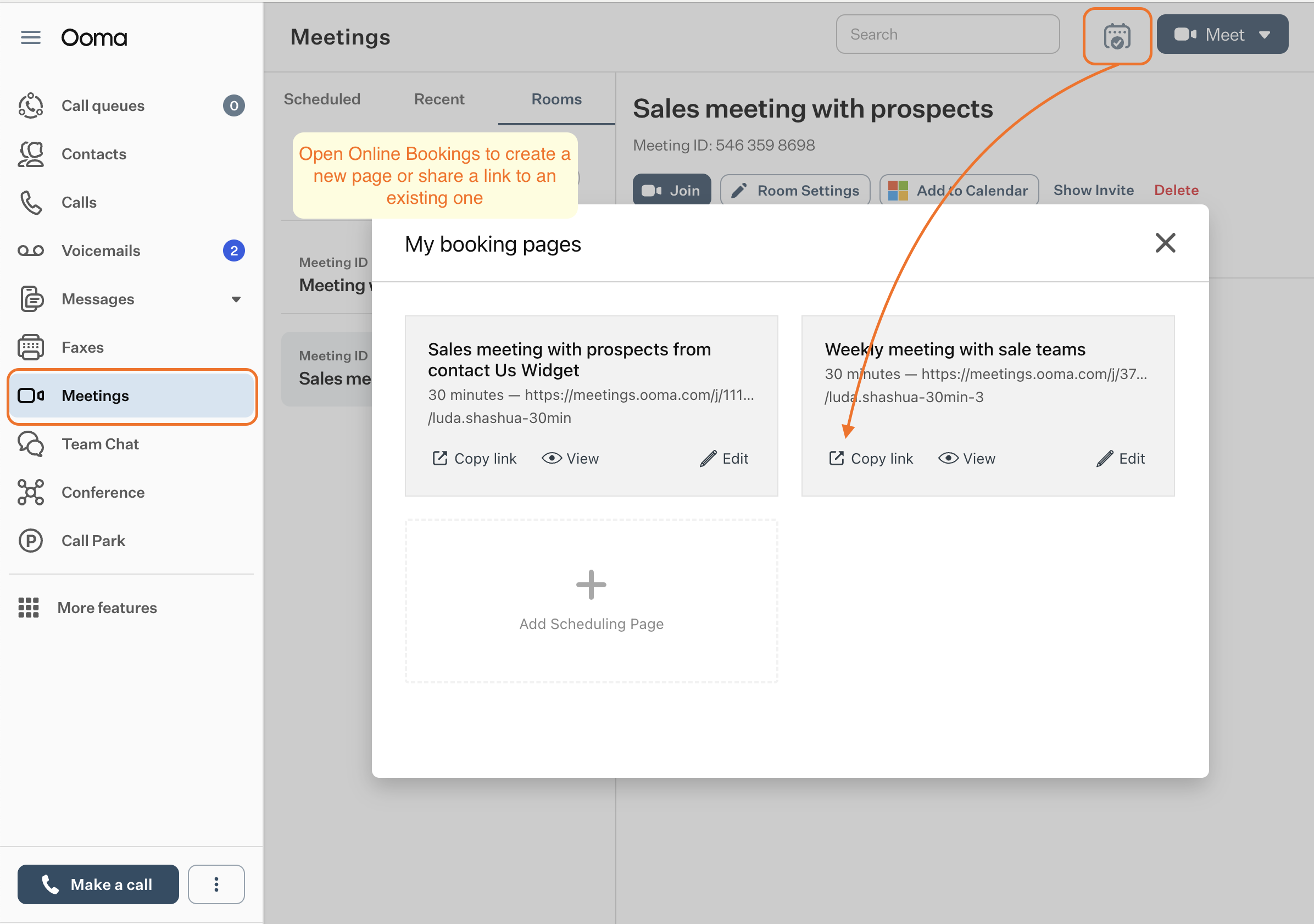
Each booking page has its own link that can be shared with invitees. Using the link allows invitees to open the page with the Ooma user’s up-to-date calendar. An invitee can find a timeslot in the and book in a meeting.
The following articles will help you to learn more about Online Bookings and how to use them:
User
- Integrating your external calendar with Ooma Meetings
- How to create a new online booking page
- How to customize an online booking page
- How to share an online booking page with customers
- How to delete an online booking page
Invitee