





Once you have enabled CRM integration in Ooma Office , you must install the Ooma Office for Freshdesk application so the users you’ve selected can access Ooma from within Freshdesk. Before you perform this step, you must enable Ooma for Freshdesk CRM integration by following the steps outlined in this article.
Prerequisites
You will need the following to set up Ooma Office for Freshdesk:
- A Freshdesk account with an Administrator role
- A Freshdesk license for level Growth, Pro, or Enterprise
Installing the App
You can install the app by following these instructions:
- Log in to your Freshdesk application
- Navigate to Admin using the left side navigation menu, then select Support Operations
- Select Apps
- Search for Ooma Office
- Use the Install option
Configuring the App
After you select Install, you’ll see the application’s settings window:
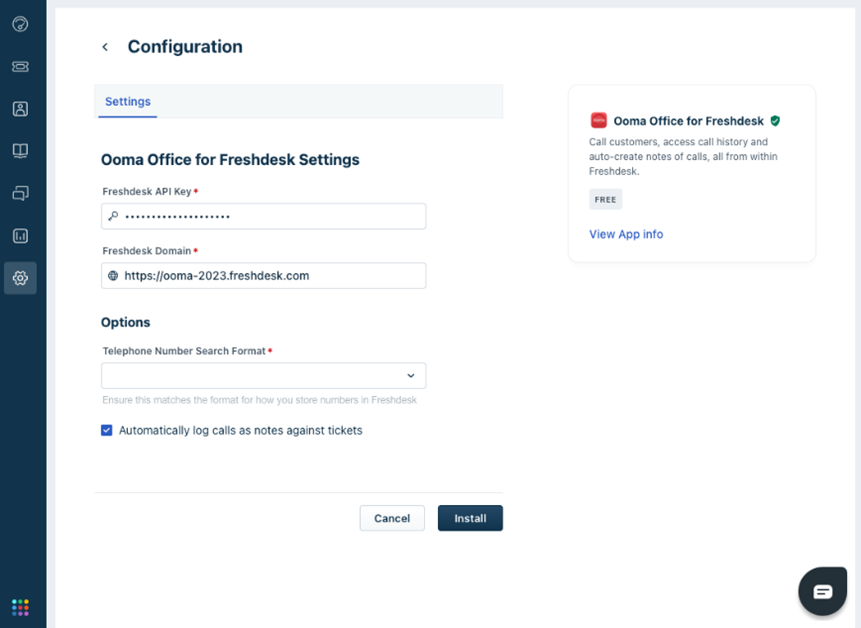
The only thing you’ll need to select is the telephone format. All other information should be automatically populated.
Use the dropdown menu to select which format you’re using for your Freshdesk Contacts phone numbers. In most cases, the 9876543210 format will work best.
You can also choose to automatically log call notes against tickets. This setting controls whether Ooma Office for Freshdesk will automatically create Notes against tickets. It will apply to all users and is enabled by default.
Use the Install button to complete the application’s installation process.
Managing the App
You can edit settings or uninstall the application at any time by using the Settings dropdown on the Ooma Office for Freshdesk application page.