





Last Updated: January 9, 2026
Before you can use all the most up-to-date features Ooma has to offer, you must make sure you are using the newest version of the Ooma Desktop App or the Ooma Office user portal.
Ooma Office Desktop App
There are a few ways to tell that you’re using an outdated version of the Ooma Office Desktop App:
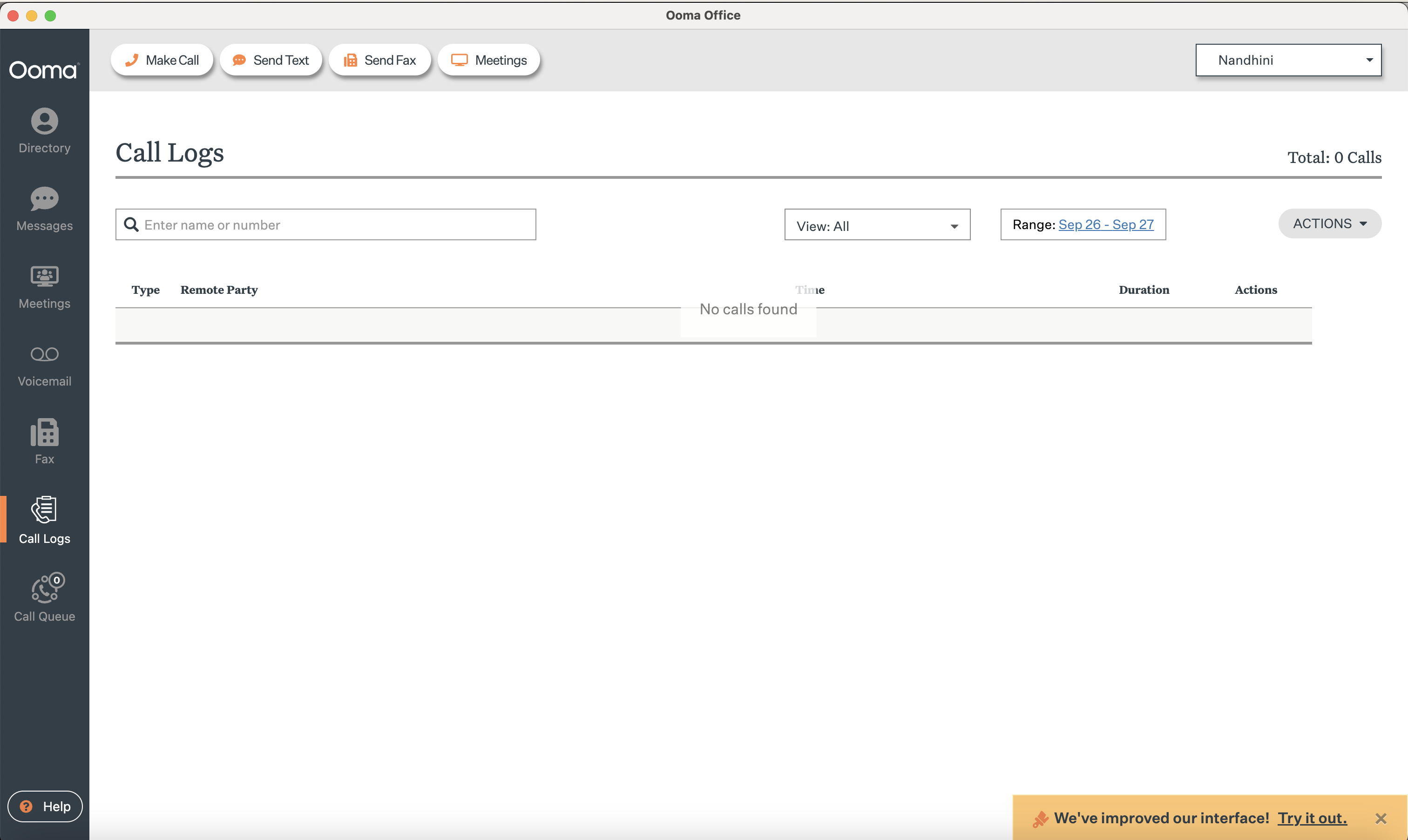
- You will see light images on a gray background to represent modules in the left sidebar
- The Make Call option will be in the upper-left corner
- You will see your name in the upper-right corner
- You may see an orange We’ve improved our interface! banner in the lower-right corner
You can upgrade in several differeny ways. Only use ONE of the following upgrade options:
- Download the Ooma Office Desktop Application for either Mac or Windows.
- Use the the link in the We’ve improved our interface! banner to update the app.
- Use the Ooma Office dropdown menu in the upper-left corner and select Switch to new look.
When you have finished upgrading, be sure to close the app and restart it if you’re still seeing the old look.
Ooma Office user portal
There are a few ways to tell that you’re using an outdated version of the Ooma Office user portal:

- The color scheme will be red
- There may be a blue banner at the top of the screen urging you to upgrade
You can upgrade in several different ways. Only use ONE of the following upgrade options:
- Go directly to https://office-app.ooma.com/ and update your Ooma Office bookmark to this site.
- Use the Switch to new look link in the banner to go to https://office-app.ooma.com/.
- Find your name in the upper-right corner and use that dropdown menu to choose Switch to new look. You will be redirected to https://office-app.ooma.com/.