


 Introducing
  ,
, 



NOTE: If you are a T-Mobile customer and you have purchased a pre-activated Ooma Telo Air 2, please visit this article to continue setting up your device. Your Quick Start Guide will tell you if your device has been pre-activated.
Get the App
The easiest way to set up your Base Station is with your iPhone or Android smartphone. Visit the app store on your phone and search for the Ooma Setup app.
Open the app when it is installed. It’ll ask you to enter some information about yourself and your location. You’ll also select a phone number.
Power on
Plug the included AC adapter into the POWER port. The Ooma logo will blink red for a few minutes. When it turns blue, the Base Station is ready.

Connect Base Station to the Internet
The Ooma Setup app contains instructions that will guide you through connecting your Base Station to the Internet. You can connect in two different ways: Wi-Fi or Ethernet.
If your Base Station needs a software upgrade, the Ooma logo will blink purple while it is downloading the newest version. This may take 5-10 minutes. Do not unplug the Base Station while it is upgrading. It will automatically reboot after the upgrade is done.
Wi-Fi Connection
The Ooma Setup app will guide you through connecting your Base Station to your home Wi-Fi connection.
Ethernet Connection
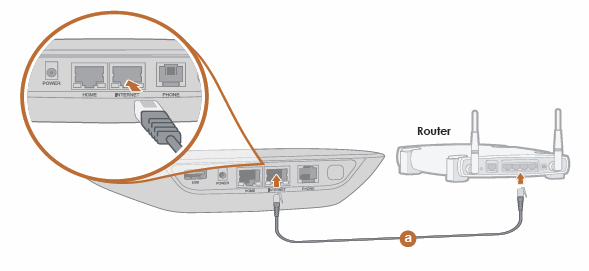
If you’d rather use a hardwired connection, insert one end of the included Ethernet cable into the INTERNET port on the back of the Base Station. Connect the other end of the cable to an open port on your router.
Connect Phone
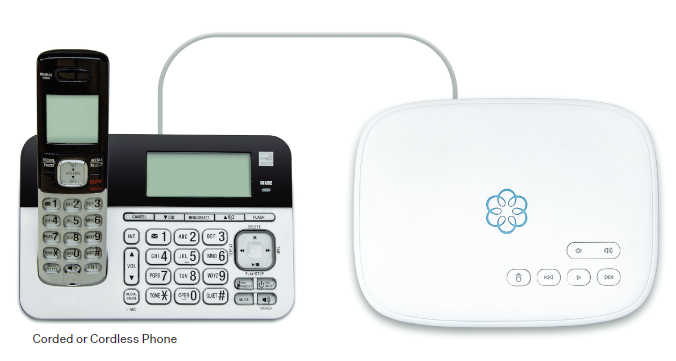
Make sure your Base Station is plugged in and that it has powered on and downloaded any applicable updates. Then, using an existing corded or cordless phone, plug the other end of the cord into the PHONE port.
FAQs
If you have questions while you are activating your account, these FAQs may be of help to you: