





Ooma Office Pro Plus subscribers can integrate with the Zoho CRM. When integration is enabled, users will enjoy access to Ooma Office features right in the CRM, as well as automated lookups of CRM records related to the remote party’s phone number for both inbound and outbound calls.
Getting Started
Before you can get started, an account admin will need to enable CRM integration for your account.
Installing the Ooma Office Marketplace
The account administrator must then go to the Zoho Marketplace and follow these instructions:
- Navigate to Zoho and log into an administrator account.
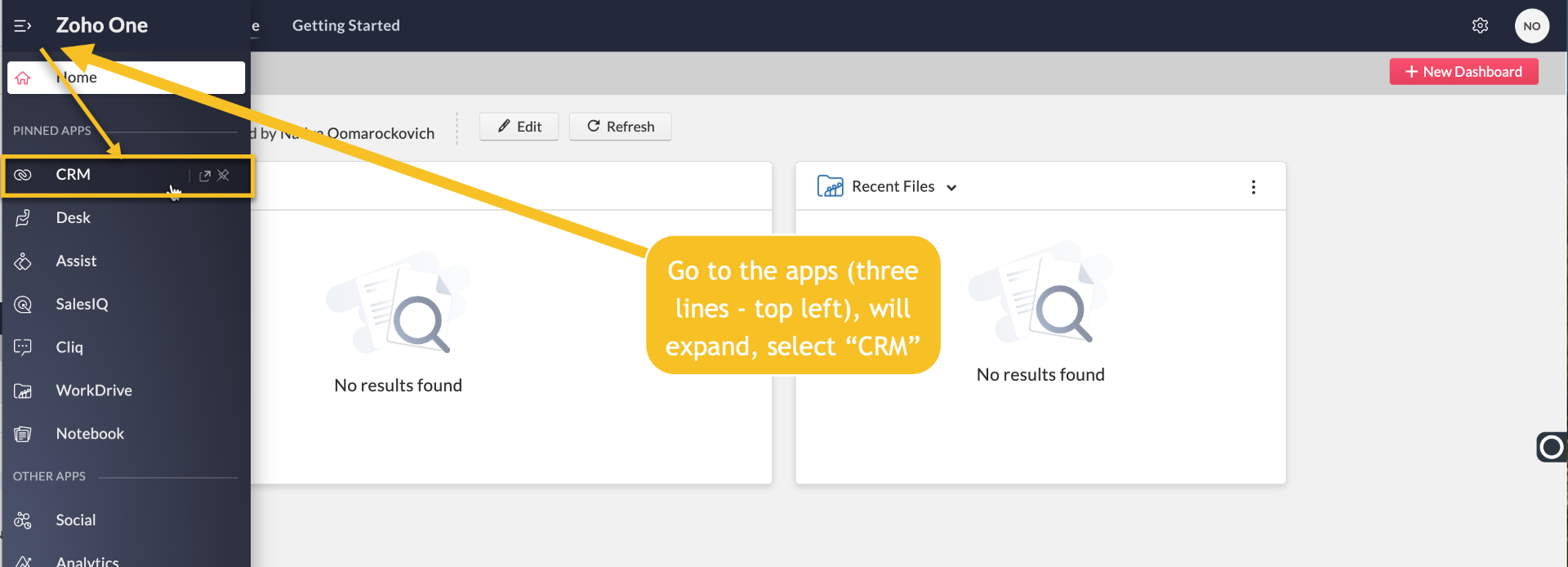
- Locate the Apps option located in the upper-left corner and then navigate to the CRM section:
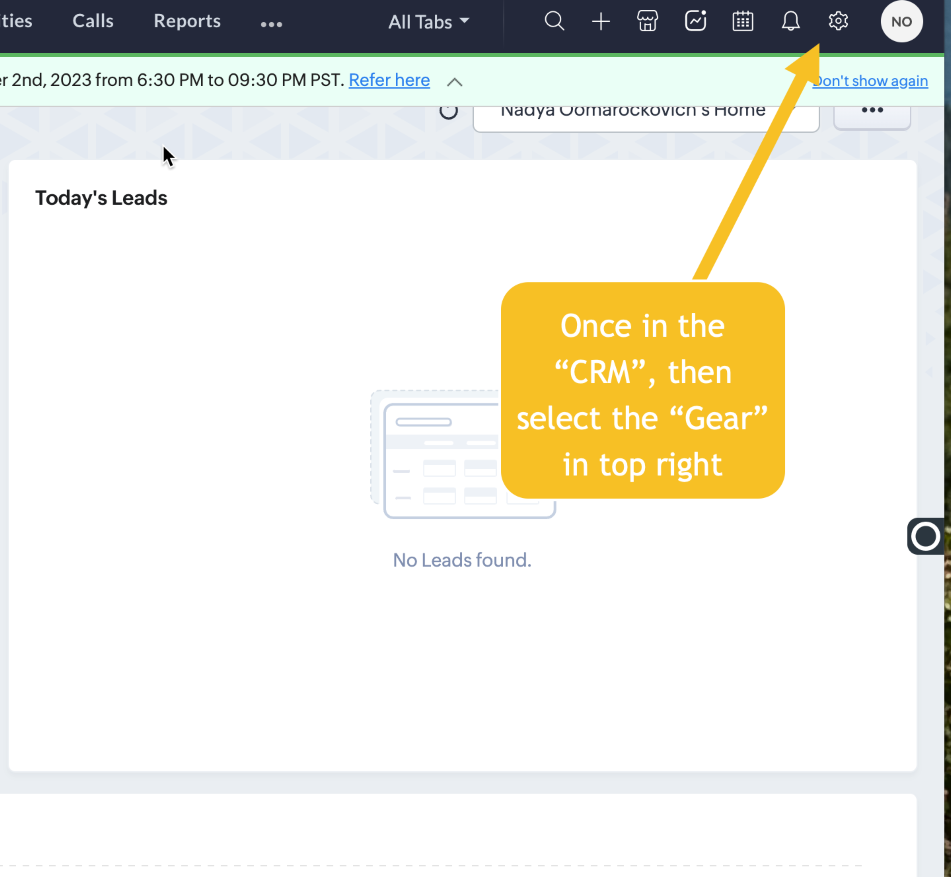
- Locate the Gear icon in the upper-right corner to open the Setup screen:
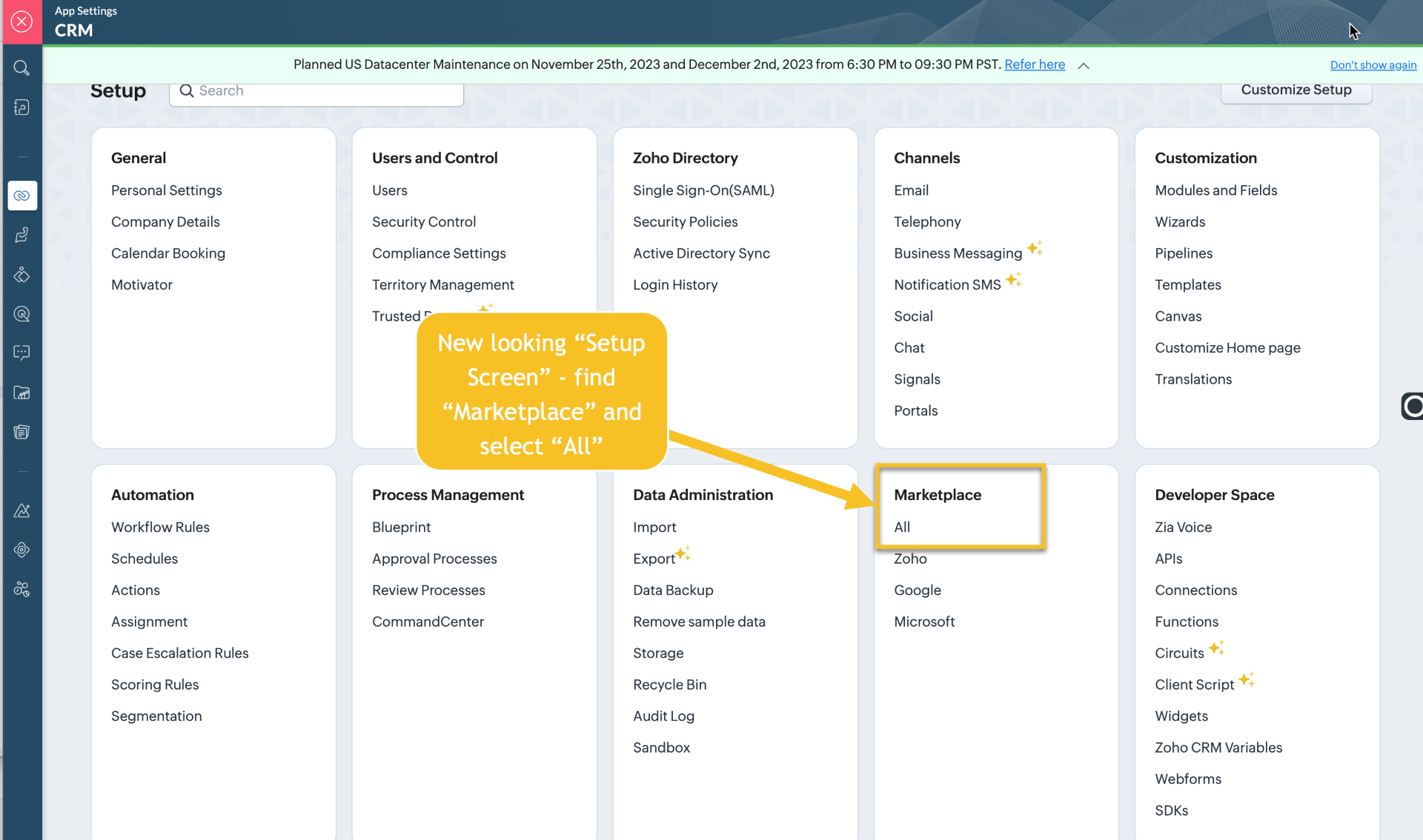
- In the Marketplace section, select All:
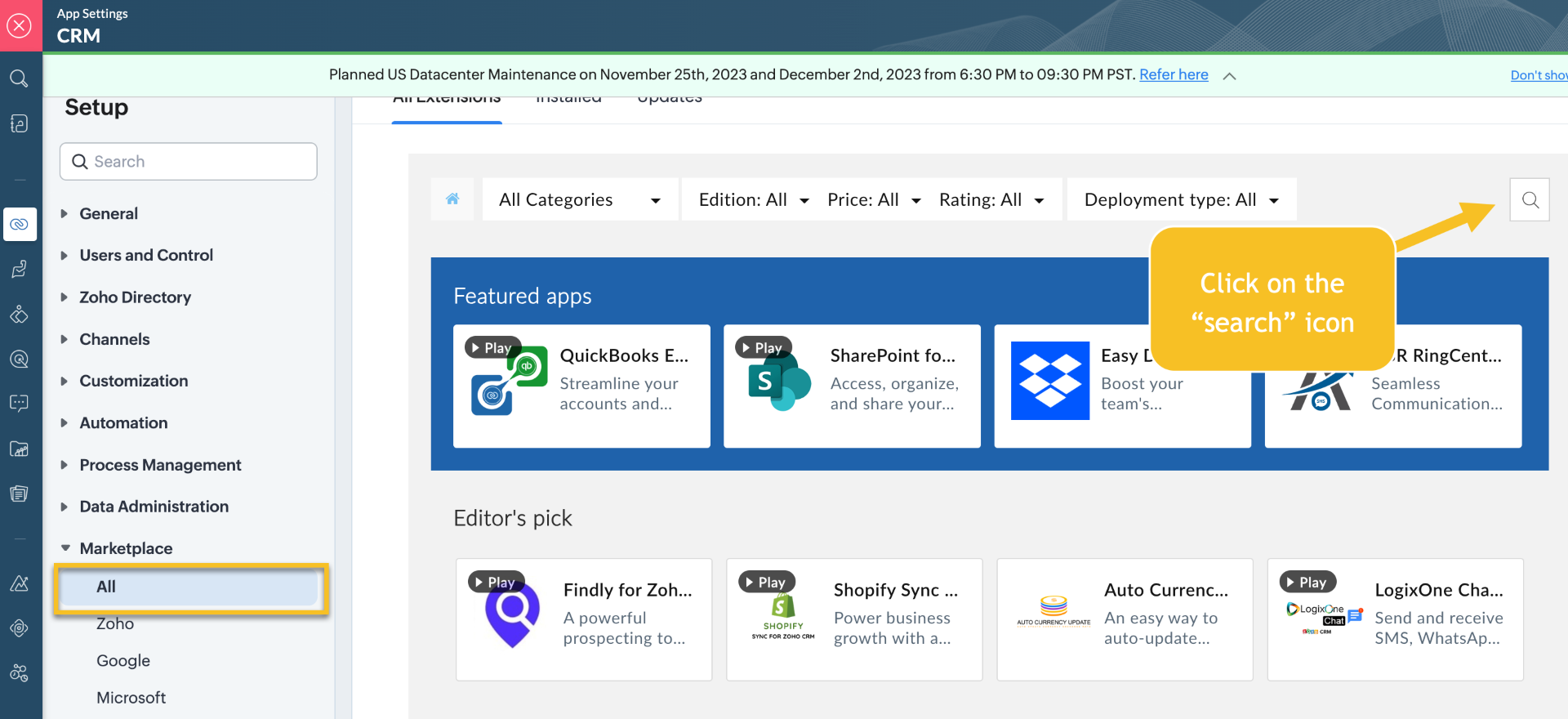
- Use the Search icon to open a search box and enter ooma into the search bar on the right side of the screen. Select Ooma Office for Zoho CRM from the results.
- Install the app after you have agreed to the terms and conditions.
The Ooma application will now be available to all Zoho users in the account.
Setting up the Ooma Office CRM plugin in Zoho
Once an Ooma Office admin has enabled CRM integration for Zoho and installed the plugin on their end, all users will be able to access the plugin from their logins. If you can see the Ooma Office plugin, feel free to review its settings and make any changes you’d like.
Choose a topic from the list below to learn more about Ooma for Zoho:
User
Troubleshooting