





Introduction
The Ooma Office mobile app functions like a business phone, offering features like access to the company’s Virtual Receptionist, extension dialing, conference calling, and call transfers. It also lets you manage voicemails and enables seamless communication. Designed for efficiency, the Ooma Office app serves as a centralized hub to help keep teams connected anytime, anywhere.
Getting Started
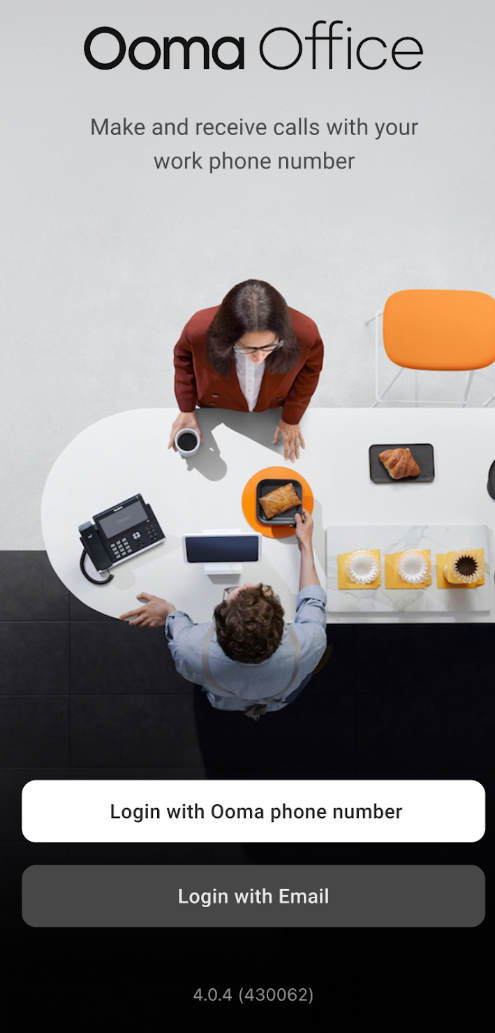
The first thing you’ll see when you launch the Ooma Office app is the login screen, where you can log in with either your Ooma phone number or your email address:
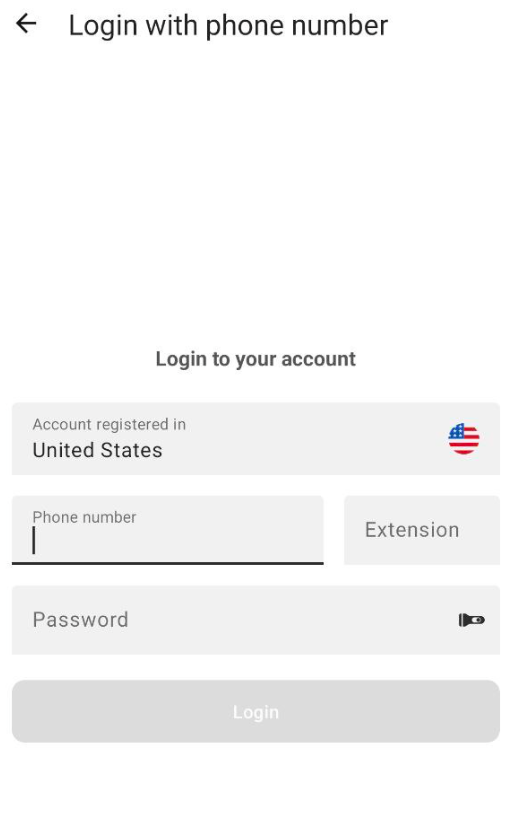
Choose Ooma phone number to log in with the same credentials you use to log into Ooma Office Manager:
Modules and Features
The Ooma Office app follows a modular approach, so this user guide outlines key information about each module. You can use the table of contents below to choose a specific module, or you can start at the beginning and read through each section in order.

